

Not long ago, using an AI language model meant sending your questions to a distant server and waiting for an answer to come back. Today, you can download a capable model and run it entirely on your own computer. Your prompts never leave your machine, there is no monthly bill for basic use, and the model keeps working even when your internet connection does not. This guide explains how to run an LLM locally, in plain language, from choosing hardware to chatting with your first model.
Running a model locally sounds technical, but the tools have become friendly enough that a patient beginner can do it in an afternoon. You do not need to train anything, write complex code, or understand the mathematics inside the model. You mainly need to pick a model that fits your computer, install one of the popular runner tools, and download the model files. The rest of this guide walks through each step, explains the choices, and helps you avoid the common mistakes that frustrate first-timers.
Why Run an LLM Locally?
The most popular reason is privacy. When you use a cloud chatbot, your prompts travel to someone else’s servers, where they may be logged, reviewed, or used to improve products, depending on the service’s policy. A local model keeps everything on your own hardware. That matters if you work with personal notes, business documents, medical or legal drafts, or anything else you would rather not upload. For many people, privacy alone justifies the effort.
Cost is another reason. Cloud services often charge per message or per month, and heavy use adds up. A local model costs nothing per message after the initial download, apart from electricity. If you experiment a lot, draft long documents, or want an assistant available all day, local use can be far cheaper over time.
Offline access is a third advantage. A local model works on a plane, in a cabin, or anywhere with poor connectivity. Students, field workers, and travelers value this independence. It also means you are not affected when a cloud service is down, changes its prices, or removes a model you liked.
There is also control. With a local model, you choose the exact model, its settings, and its behavior. You can try open models of different sizes, adjust how creative or careful the answers are, and connect the model to your own documents and tools. You are not limited to one company’s interface or rules. That freedom appeals to developers, researchers, and curious users who want to understand how these systems actually behave.
Local models do have limits, and honesty about them will save you disappointment. The models that run comfortably on an ordinary laptop are smaller and less capable than the largest cloud models. They may know less, make more mistakes, and struggle with very long or complex tasks. They also need disk space, a reasonable amount of memory, and some patience during setup. If you need the absolute best performance for professional work, a cloud model may still win. But for everyday writing, summarizing, brainstorming, coding help, and learning, a good local model is genuinely useful.
What You Need Before You Start
You do not need a supercomputer, but you do need to know roughly what your machine can handle. Three resources matter most: memory, storage, and, if you have one, a graphics card.
Memory, or RAM, is where the model lives while it runs. Small models of around one to three billion parameters can run in 8 GB of RAM, though 16 GB is much more comfortable. Medium models of seven to eight billion parameters generally want 16 GB or more, and larger models need 32 GB or beyond. If your computer has only 8 GB, start with a small model and see how it feels before trying anything bigger.
Storage matters because model files are large. A small model might be two to four gigabytes, while a seven-billion-parameter model is typically around four to eight gigabytes depending on how compressed it is. Make sure you have at least twenty gigabytes of free disk space before you begin, so downloads and a couple of models fit comfortably. A solid-state drive helps models load faster, but a regular hard drive works too.
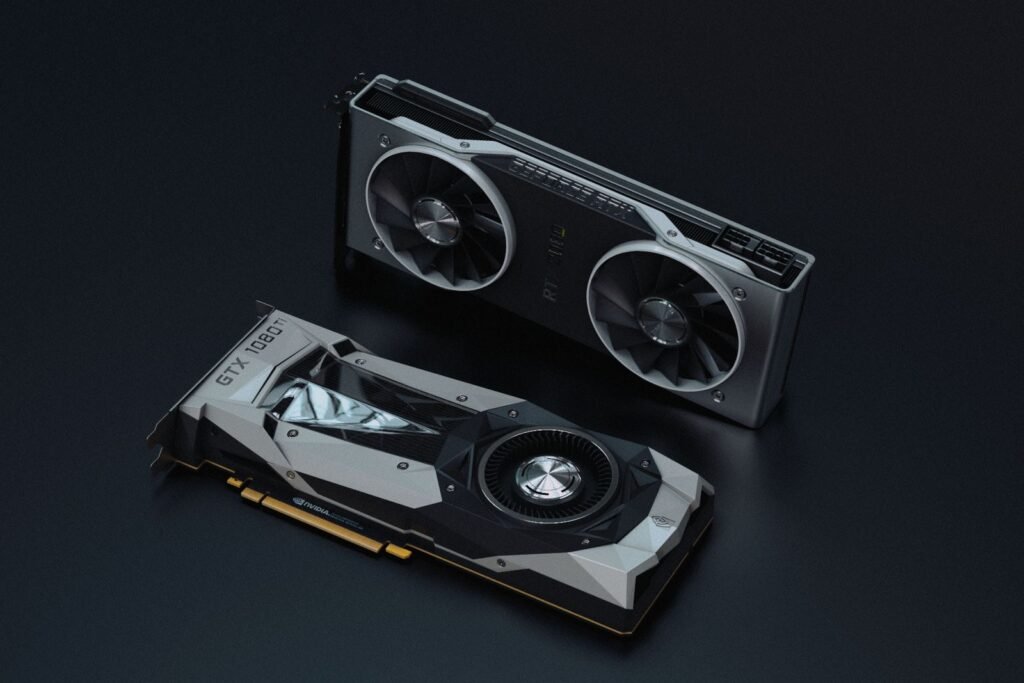
A graphics card, or GPU, speeds things up greatly if you have one, because graphics cards are built for the kind of parallel math that models need. Many gaming laptops and desktops have a usable GPU. Apple Silicon Macs use their unified memory instead, and modern Macs with 16 GB or more run small and medium models surprisingly well. If you have no dedicated GPU, do not worry: the processor alone can still run small models at a usable speed for chatting and short writing tasks.
Your operating system matters less than it used to. Windows, macOS, and Linux are all well supported by the main tools. On Windows, you may need to allow the installer through security prompts, and on macOS you may need to approve the app the first time it runs. Either way, the setup is a normal install, not a system rebuild.
Before installing anything, take two small preparatory steps. First, check how much RAM and free disk space your computer has, so you can pick a model size that fits. Second, decide what you want the model for: casual chat, writing help, coding, or document questions. Your purpose guides the model choice, because different models shine at different tasks. A general chat model is a fine starting point for most people.
Choosing Your First Model
Model names can look like alphabet soup, so here is how to read them. A model name usually includes its size in billions of parameters, such as 1B, 3B, 7B, or 8B. Parameters are roughly the model’s learned settings; more parameters usually mean more capability, but also more memory and slower speed. For a first run, a 3B or 7B model is a sensible target on most modern computers.
You will also see the word “instruct” or “chat” in model names. These are versions tuned to follow instructions and hold conversations, which is what you want. Base models without this tuning are harder to use, because they tend to continue text rather than answer questions. Always pick an instruct or chat version for your first local model.
Another term you will meet is quantization, which means compressing a model so it takes less memory, with a small cost in quality. Quantized models are labeled with codes like Q4 or Q8. A Q4 model is much smaller and faster, and for most everyday uses the quality loss is barely noticeable. Beginners should start with a Q4 or Q5 version of a small or medium model, because it is the easiest way to get good results on ordinary hardware. We explain quantization in depth in a separate guide.
Where do models come from? The largest public library is Hugging Face, a platform where researchers and companies share open models, along with documentation and community discussion. You do not need to browse it directly at first, because runner tools like Ollama offer curated model lists with one-command downloads. But knowing about Hugging Face helps later, when you want a specialized model for coding, a particular language, or a specific task.
For a first model, look for a popular, well-documented general-purpose model in the 3B to 8B range with an instruct version. Popular families include small models from major open releases, which are widely tested and have good community support. If one model feels slow or gives weak answers, try another; switching models locally costs only a download, not a subscription change.
The Tools That Run Local Models
You need a runner: a program that loads a model, manages memory, and gives you a chat interface or an API. Several good runners exist, and your choice depends on how you like to work.
Ollama is the most popular starting point. It installs with one download, runs from a simple command line, and downloads models with a single command. It works on Windows, macOS, and Linux, and it keeps models organized for you. If you only want to chat with a model and occasionally connect it to other apps, Ollama is the easiest path, and this guide uses it for the step-by-step section.
LM Studio is a friendly alternative with a graphical window instead of a command line. You can browse models, download them with clicks, adjust settings with sliders, and chat in a clean interface. It is a good choice if you prefer not to use the terminal, and it also offers a local server so other apps can talk to your model.
For more advanced users, llama.cpp is the engine underneath many tools. It is fast and flexible, runs on almost any hardware, and supports many model formats, but it requires more manual setup. GPT4All is another beginner-friendly app with a chat interface and a curated model list. None of these choices is permanent; you can try one, and if it does not suit you, try another with the same model files.
Most runners also expose a local API, which is a way for other programs to send prompts to your model and receive answers. This is how you later connect a local model to a notes app, a coding assistant, or an agent project. You do not need the API for your first chat, but it is good to know it exists, because it turns your local model from a toy into a building block.
Step by Step: Your First Local Model
Here is a complete first run using Ollama. The exact screens may vary slightly by version, but the steps are stable.
First, download Ollama from its official website and install it like any normal application. On macOS and Windows, the installer places a small icon in your menu bar or system tray, showing that Ollama is running in the background. On Linux, follow the install command on the website, which sets up the service for you.
Next, open a terminal or command prompt. This sounds intimidating, but you only need one command to get a model. For a small, friendly first model, type a command in the form ollama run <model-name>, using the name of the model you chose from Ollama’s model library. Press enter, and Ollama will download the model, which may take several minutes depending on its size and your connection. You only download once; later runs start instantly.
When the download finishes, you will see a chat prompt. Type a question, such as asking the model to explain a topic in simple terms or to draft a short paragraph. The model will answer, one piece at a time, directly on your machine. Try a follow-up question to see how it remembers the conversation. If the answer is slow, that is normal for a first run, especially without a graphics card; later answers often speed up as the system warms up.
To stop chatting, use the exit command shown by the tool, usually /bye. To run the model again later, repeat the same run command; Ollama will skip the download and start immediately. To see which models you have installed, there is a list command, and to remove one you no longer want, there is a delete command. These few commands cover almost everything a beginner needs.
If something goes wrong, the most common causes are easy to fix. A download that fails usually means a network hiccup; run the command again. A model that refuses to load usually means it is too large for your memory; try a smaller model or a more compressed version. An error about a missing tool usually means Ollama is not running; restart the application and try again. Community forums for Ollama and for the model you chose are full of answers to these early problems, because every beginner hits one or two of them.
Using Your Local Model Day to Day
Once the model runs, you can use it in several ways. The simplest is chatting in the terminal or in a graphical app, asking questions, drafting text, summarizing pasted content, or brainstorming ideas. Paste a paragraph and ask for a shorter version, or paste meeting notes and ask for action items. For short, everyday tasks, this already covers a lot.
You can also connect the model to other software. Many notes apps, code editors, and writing tools can talk to a local model through its API, giving you AI help inside the app you already use. Some browser extensions and desktop apps offer a setting for a local model address, usually something like http://localhost:11434 for Ollama. Setting this up once lets you use your model without switching windows, and your data still never leaves your machine.
Another powerful use is asking questions about your own documents. Tools exist that let you load PDFs, notes, or manuals into a local system, which then answers questions using those documents as sources. This is called retrieval-augmented generation, and it is one of the most useful local setups for students, researchers, and professionals. We cover building such a system in a separate guide, but the key point is that it builds on the same foundation: a local model plus your own files.
Set sensible expectations for quality. Ask the model to show its reasoning for complex problems, break big tasks into steps, and double-check important facts, especially numbers, dates, and quotes. Local models, like all language models, can confidently state something false. Treat their output as a draft or a suggestion, not as a verified source, and verify anything that matters before you act on it.
Making Your Local Model Faster
Speed depends on model size, quantization, hardware, and settings. The biggest single win is choosing the right model size: a smaller model that answers quickly is more useful day to day than a large model you avoid using because it crawls. If speed matters more than depth, drop a size and enjoy the responsiveness.
Quantization is the second lever. A Q4 model runs much faster and uses far less memory than a full-precision version, with modest quality loss. If answers feel slow, try a more compressed version of the same model before buying hardware. Conversely, if you have memory to spare and want the best answers, a Q8 version may be worth the extra load time.
On computers with a graphics card, make sure the runner is actually using it. Most runners detect a GPU automatically, but if answers are unexpectedly slow, check the runner’s documentation for GPU settings and confirm the card is recognized. On Apple Silicon Macs, the system handles this automatically, and keeping your operating system updated helps performance.
Other tips are simple. Close heavy applications while chatting, so the model has more memory. Keep prompts focused, because very long conversations slow the model as context grows; starting a fresh chat for a new topic is often faster than continuing a long one. And store models on a fast drive if you have one, so they load quickly.
If you regularly hit limits, consider an upgrade path rather than frustration. More RAM is usually the most effective upgrade for local models, followed by a better graphics card if your machine supports one. But many users find that a well-chosen small model on their existing computer is enough, and never need to upgrade at all.

Privacy, Safety, and Common Sense
Running a model locally is a strong privacy step, but it is not magic. Your prompts stay on your machine, yet the model files themselves come from the internet, so download them only from official sources and well-known libraries. Keep your runner updated, because updates fix bugs and security issues just like any other software.
Be careful about what you paste into any model, local or cloud. A local model does not send your data away, but if you later connect it to tools that do, such as a web search plugin or a cloud service, that data can leave your machine. Check each tool’s behavior before enabling it, and keep sensitive work in purely local setups.
Also remember that a local model can still produce biased, incorrect, or inappropriate content, because it learned from vast amounts of internet text. Use it as a helper, not an authority. For medical, legal, financial, or safety-critical decisions, consult qualified professionals and verified sources, not a model alone.
Finally, respect the licenses of the models you use. Most open models allow personal and even commercial use, but some have restrictions, such as requiring attribution or limiting certain uses. The model’s page on its library will state its license plainly. Reading it takes a minute and avoids trouble later.
A Practical Starting Plan
If you want a simple plan, here it is. Today, check your computer’s memory and free space, install Ollama or LM Studio, and run a small instruct model. Spend an hour chatting, summarizing, and drafting with it, and notice where it helps and where it struggles. This week, try a second model of a different size and compare them on the same tasks. Next, if you are curious, explore connecting the model to a notes app or loading a document to ask questions about it.
That gradual approach beats trying to build a perfect system on day one. Local AI rewards experimentation: models are free to download, switching costs nothing, and each experiment teaches you what matters for your own use. Before long, you will have a setup that fits your computer, your tasks, and your comfort with privacy.
For more on this topic, explore the other guides in the Generative AI & Local LLMs category on TechBist, visit our blog for the latest explainers, and read our earlier guide on How to Evaluate AI Agent Performance to judge any model you try with a clear method.
Frequently Asked Questions
Can I run an LLM locally on an ordinary laptop?
Yes, if you choose a model that fits your hardware. Small models of one to three billion parameters run on most modern laptops with 8 GB of RAM, and 16 GB makes the experience much smoother. Start small, test the speed, and only move to a larger model if your computer handles it comfortably.
How much disk space does a local LLM need?
It depends on the model. Small models need roughly two to four gigabytes, while a seven-billion-parameter model typically needs four to eight gigabytes in a compressed format. Keep at least twenty gigabytes free so you have room for downloads and a couple of models to compare.
Is a local LLM really private?
Yes, for the model itself: your prompts and the model’s answers stay on your computer and are not sent to a cloud service. Privacy depends on the full setup, though, so avoid connecting your local model to cloud tools or plugins unless you understand what data those tools send elsewhere.
Do I need a graphics card to run an LLM locally?
No, but a graphics card makes it much faster. Without one, your processor can still run small models at a usable speed for chatting and short tasks. Apple Silicon Macs handle local models well through their unified memory, and many users find CPU-only performance perfectly acceptable for everyday use.
Which tool should a beginner use first?
Ollama is the easiest starting point for most people because it installs quickly, downloads models with a single command, and works on Windows, macOS, and Linux. If you prefer a graphical window over a terminal, LM Studio is an excellent alternative with the same basic idea.
1 thought on “How to Run an LLM Locally”