
You have probably been told for years to use a strong, unique password for every account, change it regularly, and never write it down. You have probably also failed at all of that, because everyone does. Passwords were designed for a world where people had a handful of accounts, not hundreds, and they have become the weakest link in online security: they are reused, phished, leaked in breaches, and guessed. Passkeys are the industry’s serious attempt to replace them, and unlike many past attempts, they are already built into the phones, browsers, and operating systems you use every day.
This guide explains how passkeys and passwords actually work, side by side, so you can judge the difference for yourself. You will learn why passwords keep failing despite decades of advice, how passkeys use public-key cryptography to remove the shared secret entirely, what changes in daily use, where passkeys still have rough edges, and how to start switching without locking yourself out. No jargon is assumed, and no product is being sold: passkeys are an open standard, not a single company’s feature.
How Passwords Work — and Why They Fail
A password is a shared secret. You choose a string of characters, the website stores a scrambled version of it (a hash, if the site is competently built), and each time you sign in, you present the password and the site checks whether it matches. The whole system depends on one fragile assumption: that only you know the secret. Everything that goes wrong with passwords follows from that assumption breaking, and it breaks constantly.
First, humans are bad at secrets. We reuse passwords across sites because remembering hundreds of unique strings is impossible without help, and we choose memorable ones because random strings are hard to recall. When one site is breached — and breaches happen weekly at internet scale — attackers gain a password that often works on many other sites too, a technique called credential stuffing. Password managers help enormously, but most people still do not use them, and even those who do must still guard a master password.
Second, passwords can be phished. An attacker builds a convincing fake login page, you type your password into it, and the attacker now has your secret. It does not matter how strong the password was; a twenty-character random password handed to a fake site is just as compromised as “password123”. Training helps, but phishing pages keep getting better, and even careful people get caught when tired or rushed. Any security system that fails when a human makes one mistake is a system designed to fail at scale.
Third, passwords can be guessed and cracked. Attackers try lists of common passwords, personal details, and leaked passwords from other breaches. If a site stores passwords badly — in plain text or with a weak hash — a breach hands attackers passwords they can crack offline at enormous speed. Even well-stored passwords are vulnerable to brute force if they are short or predictable. Add to this the daily friction: forgotten passwords, reset emails, lockouts, and support costs. Passwords are expensive for companies too, in help-desk time and abandoned sign-ups. The system survives because it is universal, not because it is good.
How Passkeys Work
A passkey replaces the shared secret with a cryptographic key pair. When you create a passkey for a website, your device generates two mathematically linked keys: a private key that never leaves your device, and a public key that is sent to the website. Your private key is locked behind your device’s own unlock method — your fingerprint, your face, your PIN, or your device password. Nothing secret is ever sent to the website, and there is nothing for an attacker to steal from the website’s database that would let them sign in as you.
Signing in with a passkey works like this. You visit the website and choose to sign in with a passkey. The website sends your device a challenge — a random piece of data — along with its own identity, the domain name. Your device checks that the domain matches the site the passkey was created for, then asks you to unlock it with your fingerprint, face, or PIN. Your device uses the private key to sign the challenge, and sends only the signature back. The website verifies the signature with your public key. If it checks out, you are in. The whole exchange takes a second or two, and you never typed, remembered, or transmitted a secret.
Three properties make this design powerful. First, there is nothing to phish: a fake site cannot reuse a signature made for the real site, because the signature is bound to the real site’s domain, and your device will refuse to sign a challenge for a domain that does not match. Even if you are tricked into visiting a fake page, the passkey simply will not work there. Second, there is nothing to leak: a breach of the website exposes only public keys, which are useless without the private keys locked on users’ devices. Third, there is nothing to guess: the private key is a long random cryptographic key, not a human-chosen string, so brute force and credential stuffing do not apply.
Passkeys are built on open standards — WebAuthn and FIDO2 — developed by the FIDO Alliance and the World Wide Web Consortium, and they are supported natively by Apple, Google, and Microsoft platforms. That matters because it means passkeys are not locked to one company: a passkey created on one platform can increasingly be used across platforms, and the ecosystem is converging rather than fragmenting. For the formal definition and history, see the passkey overview, and for implementation details, the Google passkeys developer documentation is a clear, practical reference.

Passwords vs Passkeys, Side by Side
The clearest way to compare the two is to run through the attacks and frictions that matter in real life. Against phishing, passwords lose badly: a password works anywhere it is typed, including a fake site. Passkeys are bound to the real domain, so a phishing site gets nothing usable. Against server breaches, passwords lose again: hashed passwords can be cracked offline, and badly stored passwords leak directly. Passkeys leak only public keys, which cannot be used to sign in. Against guessing and stuffing, passwords are vulnerable by design, because humans reuse and choose weak secrets. Passkeys use random keys that are never reused across sites, because each site gets its own key pair.
On daily usability, passkeys also win for most people. Signing in becomes a fingerprint touch or a face glance instead of recalling and typing a password, or opening a password manager, copying, and pasting. There is no password to forget, no reset flow to endure, and no “change your password every 90 days” policy to resent. For companies, passkeys reduce support costs from password resets and account lockouts, and they cut account-takeover fraud, which is why large platforms have pushed them hard.
Passwords retain a few advantages, and honesty requires naming them. Passwords work everywhere, on any device, with no setup: you can sign in from a borrowed computer with just your memory. Passkeys depend on your device and your platform’s sync, which introduces new questions about recovery if you lose all your devices. Passwords are also universally understood, while passkeys still confuse some users, especially when a site offers both options and the prompts differ between browsers. And for shared accounts — a family streaming login, a small team account — passwords are easier to hand over than passkeys, which are tied to a person’s device and biometrics. These are real trade-offs, not deal-breakers, but they explain why the transition is gradual rather than instant.
The Recovery Question
The most common worry about passkeys is also the most reasonable: what happens if you lose your phone? If your passkey lived only on that phone and nowhere else, you would be locked out. The industry’s answer is syncing. On Apple devices, passkeys sync through iCloud Keychain; on Android, through Google Password Manager; on Windows, through the platform’s credential store. When you get a new device and sign into your platform account, your passkeys come with it, protected by your platform account security and device encryption. For most people, this makes losing a phone an inconvenience, not a catastrophe — no worse than losing the device that holds your password manager today.
But syncing raises its own questions, and it is worth understanding them before you rely on passkeys fully. Your passkeys are now only as secure as your platform account: if someone takes over your Apple ID or Google account, they may gain access to synced passkeys. That makes strong protection for that account — a strong password plus two-factor authentication, ideally with a hardware key for the most sensitive accounts — more important than ever. Some security-conscious users prefer device-bound passkeys that never sync, accepting the recovery risk in exchange for keeping keys on one physical device. That is a legitimate choice for high-value accounts, and many systems let you register multiple passkeys, including a hardware security key kept in a safe place as a backup.
The practical rule is simple: before you go all-in on passkeys, make sure you have at least two ways back into each important account. Register passkeys on two devices, or register a passkey plus a hardware security key, and keep recovery codes somewhere safe and offline. Test the recovery path once, while you are calm, rather than discovering it does not work when you are locked out and stressed. Passkeys solve the password problem; they do not remove the need for a recovery plan, and anyone who tells you otherwise is overselling.
Making the Switch
Switching is easier than most people expect, because you do not have to do it all at once. Start with one or two accounts you use daily — your email, for example, since email is the recovery hub for everything else — and create a passkey alongside your existing password. Most sites that support passkeys let you keep the password as a fallback while you get comfortable, so there is no moment where you must bet everything on the new method. Use the passkey for a week, notice how sign-in feels, and then expand to your other important accounts: banking, cloud storage, and social accounts.
Next, sort out your platform setup. Make sure passkey syncing is enabled on your main devices, and confirm that your platform account itself is protected with strong authentication. If you use a password manager that supports passkeys, decide whether you want passkeys stored there or in the platform store, and keep it consistent so you know where to look. On shared devices, be careful: a passkey created on a shared computer is tied to that device’s unlock, so prefer your personal devices for passkey creation.
Finally, clean up as you go. Where a site lets you remove the password after adding a passkey, consider doing so for your most sensitive accounts, because a password left in place remains a phishable fallback. But do not rush this step: remove passwords only after you are confident in your recovery options, and keep a note — offline, not in an email — of which accounts use passkeys and where their backups live. The goal is not to be password-free by Friday; it is to be steadily more secure each month, with no account left in a state where a single lost device means permanent lockout.
Where Passkeys Still Fall Short
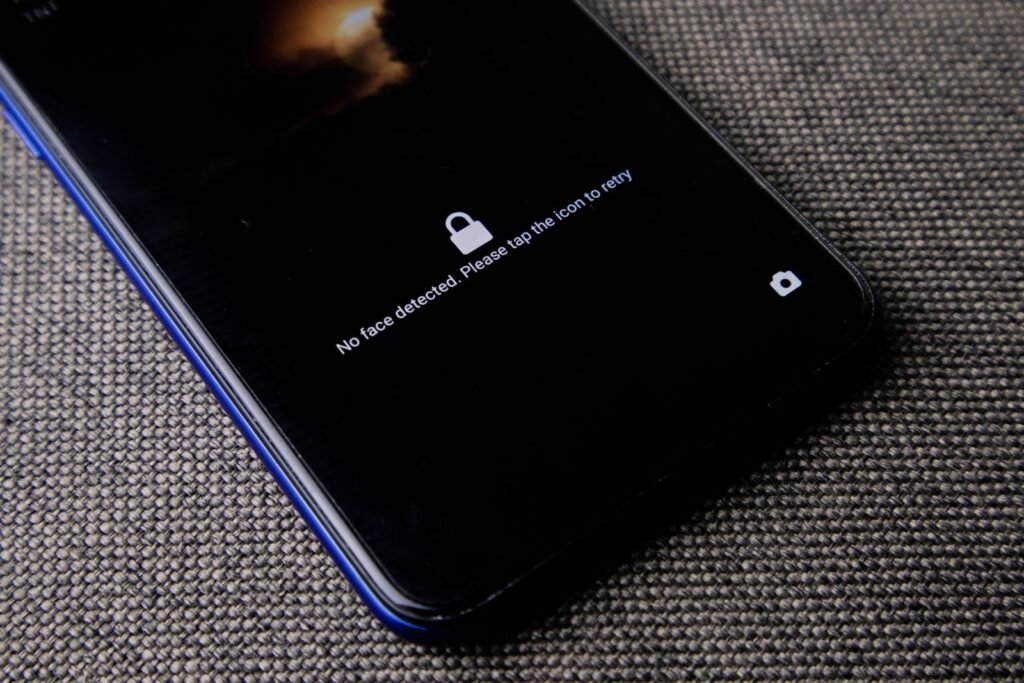
Passkeys are the best mainstream replacement for passwords we have ever had, but the ecosystem is still maturing, and a fair guide names the rough edges. Cross-platform movement is improving but not yet seamless: moving passkeys between Apple and Google ecosystems, or into a third-party password manager, sometimes requires extra steps, QR codes, or re-registration. If you switch platforms, budget time to re-create passkeys rather than assuming they will follow you automatically. This will improve as standards and export options mature, but today it is a real friction point.
Some websites implement passkeys inconsistently. A few sites offer passkeys only as a second factor rather than a full replacement, which means you still need a password underneath. Others bury the passkey option in settings, or present confusing prompts that make users fall back to passwords out of uncertainty. Enterprise environments add another layer: companies must update identity systems, help-desk procedures, and account-recovery policies before rolling passkeys out to staff, and that organizational work takes longer than the technology itself.
There are also situations where passwords remain the pragmatic choice: shared accounts, legacy systems that do not support WebAuthn, and environments where devices cannot be trusted or enrolled. Passkeys will not kill passwords overnight, and they do not need to. The realistic future is mixed for several years: passkeys as the default for personal and high-value accounts, passwords lingering for legacy and shared cases, and gradual pressure from platforms and regulators pushing the balance toward passwordless. Judging passkeys by whether they solve everything today misses the point; they solve the most damaging password failures — phishing and breaches — and that alone justifies switching where you can.
For readers tracking the wider shift in cryptography, passkeys are part of the same story as the move to quantum-resistant algorithms covered in our guide to post-quantum cryptography. Both are transitions away from fragile secrets toward cryptography that holds up against modern attackers. You can follow more of this coverage in the Advanced Cybersecurity & Privacy category, browse the TechBist blog for new guides, or start from the TechBist homepage whenever you need a plain-language explanation.

Passkeys and Two-Factor Authentication
It is natural to ask how passkeys relate to two-factor authentication, since both are often mentioned in the same breath. They solve overlapping but different problems. Two-factor authentication adds a second check on top of a password: something you know plus something you have, such as a code from an authenticator app or a hardware key. Passkeys, by contrast, replace the password entirely with a cryptographic key pair that is itself unlocked by something you have (your device) and something you are or know (your biometrics or PIN). In that sense, a passkey already combines two factors into a single step, which is part of why signing in feels simpler: one gesture satisfies both halves of the check.
That does not make additional factors useless. For your most sensitive accounts, you can combine a passkey with extra protections: a hardware security key as a second registered method, alerts for new sign-ins, and recovery codes stored offline. The point is not to pile on friction for its own sake, but to make sure that no single failure — a stolen device, a compromised platform account, a moment of inattention — is enough to lose an account. Passkeys raise the floor dramatically; thoughtful layering on top of them raises it further, and for accounts that guard your money, your identity, or your work, that extra margin is worth having.
Frequently Asked Questions
Are passkeys really more secure than a strong password in a password manager?
Yes, for the two attacks that cause most account takeovers: phishing and server breaches. A password manager solves reuse and guessing, but a password can still be phished if you are tricked into entering it on a fake site, and a breached site’s password hashes can still be cracked. Passkeys resist both, because nothing phishable is ever typed and nothing stealable is stored on the server. A password manager remains excellent, and many now store passkeys too.
What happens if I lose the device holding my passkeys?
If your passkeys sync through your platform account — iCloud Keychain, Google Password Manager, or the equivalent — they restore to your new device when you sign into that account. If you used device-bound passkeys that do not sync, you need a backup passkey on another device, a hardware security key, or the site’s account-recovery process. Register at least two sign-in methods for important accounts before relying on passkeys alone.
Can someone use my passkey if they steal my phone?
Only if they can also unlock it. A passkey is protected by your device’s unlock: fingerprint, face, PIN, or device password. A thief with a locked phone cannot use your passkeys, and a thief with an unlocked phone has access to far more than passkeys anyway. This is why a strong device lock and a short auto-lock time matter as much as the passkey itself.
Do passkeys work on all websites?
Not yet. Adoption is growing fast among major platforms — Google, Apple, Microsoft, and many large services support passkeys — but plenty of smaller sites still offer only passwords. Where a site supports passkeys, you can use them; where it does not, a password manager remains the best option. Expect coverage to keep expanding as platforms make passkey creation a default prompt.
Should I delete my passwords after adding passkeys?
Eventually, for your most sensitive accounts, yes — a password left in place remains a phishable fallback. But only do this after you are confident in your recovery options: passkeys on more than one device or a hardware backup key, plus recovery codes stored safely offline. For less critical accounts, keeping the password as a fallback while you get comfortable is perfectly reasonable.
1 thought on “Passkeys vs Passwords: How They Work”