
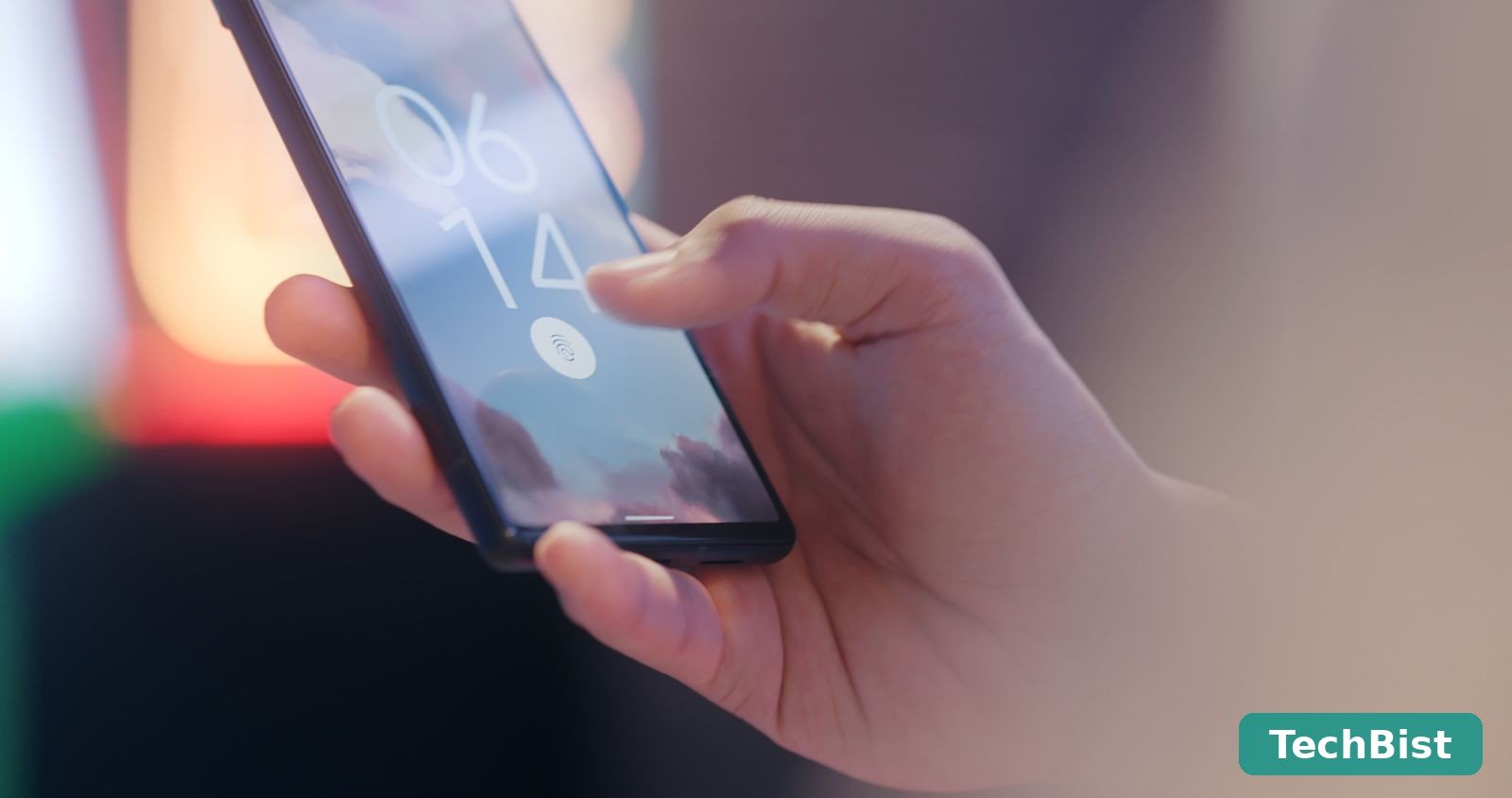
Passwords were a reasonable idea in the 1970s, when people had a handful of accounts and computers were rare. Today the average person juggles dozens or hundreds of passwords, and the system has collapsed under its own weight: people reuse passwords across sites, choose weak ones they can remember, and fall for phishing pages that steal them. Every major breach reminds us that a password, no matter how strong, can be stolen, guessed, or phished — and that a stolen password works from anywhere in the world.
Passwordless authentication is the attempt to replace that fragile secret with something stronger: cryptographic keys, biometrics, and hardware devices that cannot be phished or guessed in the same way. The technology has matured rapidly in the last few years, and the largest platforms now support it by default. This guide explains passwordless authentication in plain language: the main technologies, how each one works, their strengths and weaknesses, and a practical plan for moving away from passwords without locking yourself out.
Why Passwords Fail
Passwords fail in predictable ways, and understanding them explains why the replacements are designed the way they are. First, passwords are reusable secrets: the same string works from any device, anywhere, so stealing it once gives an attacker full access. Phishing exploits exactly this — a fake login page collects the password, and the attacker replays it on the real site within seconds. Second, passwords are guessable: people choose memorable words, dates, and patterns, and attackers use leaked password lists and automated guessing to exploit those patterns at scale.
Third, passwords are a burden. Remembering unique, complex passwords for every account is beyond human capacity, so people reuse them, write them down insecurely, or reset them constantly. Password managers help enormously, but they still sit on top of a fundamentally phishable secret. Finally, passwords leak: databases of hashed passwords are stolen regularly, and weak hashing or reused passwords turn a breach at one site into account takeovers at many others. Any replacement must solve phishing, guessing, and reuse simultaneously — not just one of them.
That is the design goal behind modern passwordless systems. The passwordless authentication overview describes the family of approaches that aim to remove the shared secret entirely, and the FIDO Alliance overview explains the industry group whose standards — FIDO2 and WebAuthn — underpin most of today’s passwordless logins. The key insight is simple: instead of proving you know a secret, you prove you hold a private key that never leaves your device.
Passkeys: The New Default
Passkeys are the most important passwordless technology for ordinary users, and they are now built into the major operating systems and browsers. A passkey is a cryptographic key pair: the private key stays securely on your device (phone, computer, or security key), and the public key is stored by the website. When you log in, the site sends a challenge, your device signs it with the private key after you unlock it with your fingerprint, face, or PIN, and the site verifies the signature with the public key. The private key never travels over the network, so there is nothing for a phisher to steal and nothing for a breached database to leak.
Passkeys have two crucial properties. First, they are bound to the real site’s domain: a passkey created for your bank will not sign a challenge from a lookalike phishing domain, so phishing pages simply cannot use them. This is the single biggest security improvement over passwords. Second, passkeys sync across your devices through your platform’s cloud account — Apple, Google, or Microsoft — so you do not lose access when you get a new phone, and you can sign in on a new device by approving from one you already own.
There are trade-offs to understand. Synced passkeys depend on your platform account’s security, so protecting that account with a strong password and two-factor authentication matters more than ever. Device-bound passkeys — those stored only on a single security key or device — are even stronger but harder to recover if the device is lost. And not every site supports passkeys yet, so most people will run a hybrid setup for a while: passkeys where available, a password manager everywhere else. That is fine — every account you move to passkeys is one account that can no longer be phished.
Biometrics: Convenient, With Caveats
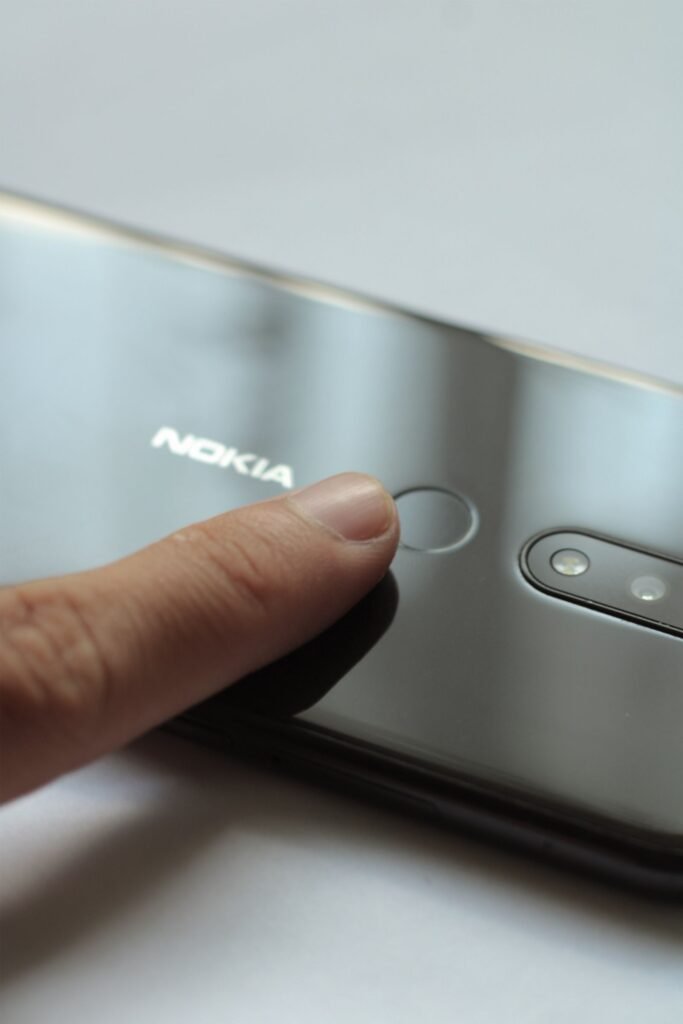
Biometrics — fingerprints, face recognition, and iris scans — are how most people actually unlock passwordless logins day to day. When you use a passkey, you typically approve it with your fingerprint or face, and the biometric itself never leaves your device: it simply unlocks the local key. This design is important, because it means a website never receives your fingerprint data, and a breach cannot leak it.
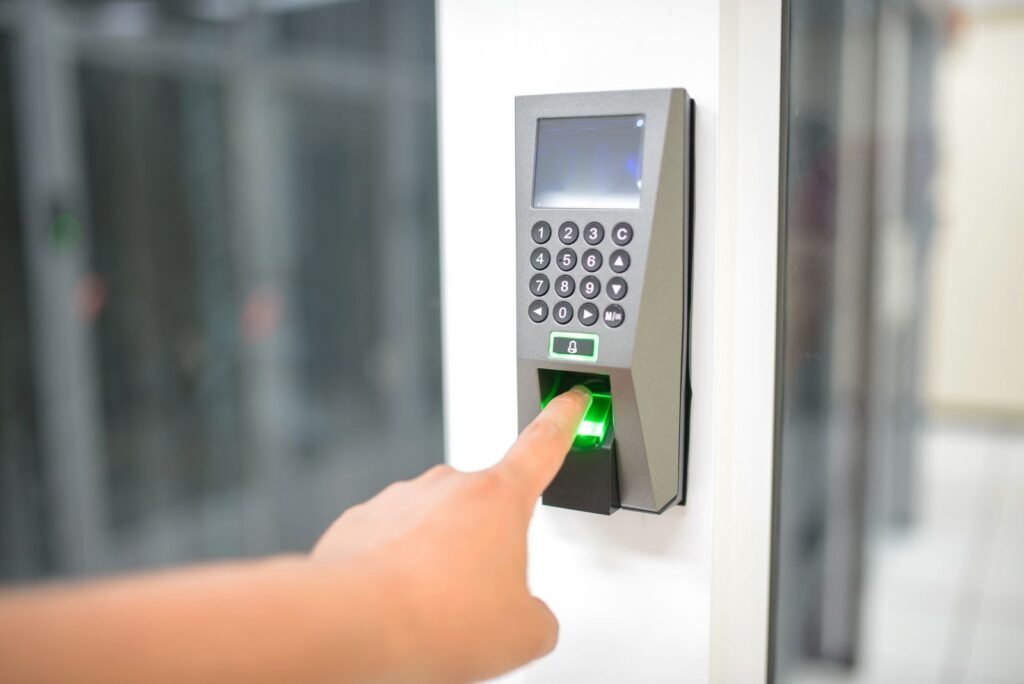
Biometrics are convenient and hard to forget, but they have limits worth knowing. You cannot change a fingerprint the way you change a password: if biometric data is ever compromised in a system that stores it centrally, the damage is permanent. That is why device-local biometrics, used only to unlock a key, are far safer than server-side biometric databases. Biometrics also have legal and practical quirks: in some jurisdictions, you can be compelled to unlock a device with your face or finger more easily than to reveal a memorized PIN, and a fingerprint does not work well with wet hands, gloves, or injuries. The sensible approach is to treat biometrics as a convenient local unlock method, backed by a PIN or security key as a fallback, rather than as the sole factor for everything.
Voice and behavioral biometrics — recognizing how you type, move a mouse, or speak — are emerging as additional signals, mostly for continuous authentication in enterprise settings. They are promising for detecting account takeover after login, but they are not yet a replacement for a primary login factor, and their privacy implications deserve scrutiny before wider adoption.
Security Keys: The Gold Standard
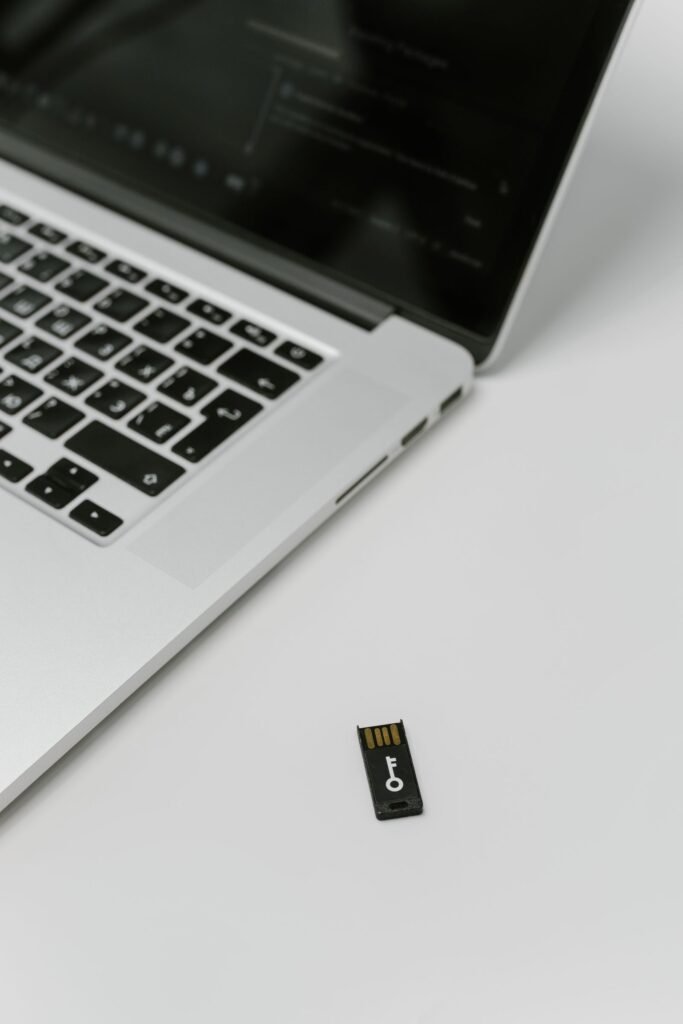
A hardware security key is a small USB or NFC device, roughly the size of a thumb drive, that holds cryptographic keys and signs login challenges when you touch it. Security keys are the strongest widely available login method: they are immune to phishing, because they verify the site’s domain before signing; immune to remote theft, because the private key never leaves the device; and immune to malware on your computer in most attack models, because signing requires physical touch.
Security keys are the recommended choice for high-value accounts: email, cloud storage, financial services, and any admin or business account. They are also the best recovery method for passkeys: if you lose your phone, a registered security key can restore access to your accounts. The main drawbacks are practical, not technical. Keys cost money, they can be lost or damaged, and carrying one is an extra habit to build. The standard advice is to buy two keys, register both on every important account, and store the second in a safe place. That way, losing one key is an inconvenience, not a lockout.
For organizations, security keys solve a class of attacks that no training program fully prevents. Phishing-resistant authentication is now a requirement in many security standards for privileged accounts, precisely because even well-trained employees click phishing links under pressure. If you manage accounts for a team, prioritizing security keys for administrators and finance staff gives the highest security return per dollar of any single change.
Magic Links and One-Time Codes
Two other passwordless methods are common, and they are worth distinguishing from the cryptographic approaches above. Magic links send a login link to your email: click it, and you are signed in. One-time codes send a short numeric code by email or SMS, which you enter to log in. Both remove the need to remember a password, and both are better than a weak, reused password — but neither is phishing-resistant in the way passkeys and security keys are.
The weakness is the channel. Email accounts are themselves a target, and an attacker who compromises your email can request magic links or codes for every account tied to it. SMS codes are worse: they can be intercepted through SIM swapping, where an attacker convinces your carrier to move your number to their device, or through network-level attacks. SMS codes also train users to enter codes on demand, which makes them vulnerable to phishing pages that ask for the code in real time. Treat email and SMS codes as a stepping stone, not a destination: use them where nothing better exists, protect your email account fiercely, and move to passkeys or security keys for anything important.
There is one important exception: authenticator app codes (time-based one-time passwords) are stronger than SMS because they are generated locally on your device and are not transmitted over a network. They are still phishable — a fake login page can ask for your code and replay it within its short lifetime — but they are a solid second factor and a good complement to a password manager while you migrate to passkeys.
Making the Switch: A Practical Plan
Switching to passwordless authentication sounds daunting, but a gradual plan makes it manageable. Start with your most important account: your primary email. Email is the recovery path for nearly everything else, so securing it first protects the whole chain. Enable passkeys or a security key on it, keep your password manager as backup, and make sure recovery options are current. Next, secure your platform accounts (Apple, Google, Microsoft), your financial accounts, and your cloud storage — in that order.
Then work through your remaining accounts opportunistically. When a site offers passkeys during sign-in, accept and create one; most major services now prompt for this. Keep your password manager running in parallel for sites that do not yet support passkeys, and let it generate unique passwords for those. Over time, the share of passwordless accounts grows, and the share of phishable accounts shrinks. Do not delete passwords or old recovery methods until you have tested the new login on all your devices — a passkey that works on your phone but not your laptop is a partial migration, and partial migrations cause lockouts.
Recovery planning is the part people skip, and it is the part that matters most. For each critical account, confirm: what happens if I lose my phone? Do I have a second device, a security key, or printed recovery codes stored safely? Test the recovery path once, before you need it, while you still have access. Store recovery codes in a safe place — a locked drawer or a safe, not a note on your phone — and tell a trusted person where they are in case of emergency. Passwordless authentication only feels effortless when recovery is planned; without it, a lost device becomes a crisis.
What Passwordless Does Not Solve
Passwordless authentication is a major improvement, but it is not a cure-all, and honest expectations matter. It does not protect you if your device itself is compromised: malware on an unlocked phone can act as you, regardless of how you logged in. It does not protect against social engineering that bypasses login entirely — an attacker who tricks you into approving a fraudulent transaction, or into handing over a recovery code, does not need your password. And it does not fix weak account recovery: if a site lets anyone reset access with easily obtained personal details, even a passkey-protected account can be taken over through the back door.
Account recovery is, in fact, the weakest link in most passwordless deployments today. Attackers increasingly target recovery flows — support chats, email resets, identity verification questions — because the front door is now too strong to force. When choosing services, look at their recovery options with the same scrutiny you apply to login: avoid security questions based on public information, prefer recovery codes and registered devices over SMS, and be wary of any service that lets support staff override strong authentication with a phone call alone.
The broader lesson is that authentication is one layer in a security system, not the whole system. Device security, software updates, careful sharing habits, and skepticism toward urgent requests all still matter. Passwordless authentication removes the most exploited weakness — the phishable password — and that is a large and worthwhile gain. Combined with good device hygiene and a tested recovery plan, it is the closest thing to a solved login problem that ordinary users have ever had. For related reading, see our guide to detecting AI-generated deepfakes, browse the full Advanced Cybersecurity & Privacy category or the TechBist blog, and start from the TechBist homepage for more plain-language technology guides.
Passwordless in the Enterprise
For organizations, passwordless authentication brings benefits that go beyond individual convenience. Help-desk costs drop sharply when password resets — historically one of the most common support tickets — largely disappear. Phishing simulations that once caught a meaningful share of employees become far less dangerous, because stolen credentials alone no longer grant access. And compliance improves: many security frameworks now recognize phishing-resistant authentication as a strong control, which can simplify audits and cyber-insurance applications.
Deployment in an enterprise follows a phased pattern. Start with administrators and high-risk roles, who get security keys first, because their accounts are the most valuable targets. Then roll out passkeys to the general workforce, integrated with the company’s single sign-on system so that one passwordless login grants access to approved applications. Provide clear guidance and support during the transition — employees need to understand what a passkey is, how to use it on a new device, and what to do if they lose one. The most common enterprise failure is not technical but communicative: rolling out passkeys without explaining them, then drowning the help desk in confusion.
Legacy systems deserve honest attention. Some older applications do not support modern authentication standards and will continue to require passwords for years. For those, isolate them behind a modern identity gateway where possible, enforce strong unique passwords through a managed password manager, and monitor their usage closely. A passwordless strategy does not require every system to change at once — it requires the most important systems to change first, and a plan for the rest.
Frequently Asked Questions
Are passkeys really safer than a strong password in a password manager?
Yes, for phishing resistance. A strong unique password in a manager protects against guessing and reuse, but it can still be stolen by a convincing phishing page. A passkey cannot be phished, because it only signs challenges from the genuine site’s domain. A password manager plus passkeys together is the best combination for most people.
What happens if I lose the device holding my passkeys?
Synced passkeys recover through your platform account on a new device, usually by approving from another device or entering your platform credentials. Device-bound passkeys and security keys require a registered backup: a second key, another device, or recovery codes. This is why registering two keys and testing recovery in advance matters so much.
Can biometrics be stolen and used against me?
Device-local biometrics, used only to unlock a key on your phone or computer, are not sent to websites and cannot be harvested from a breach. Centrally stored biometric databases are riskier, because biometric traits cannot be changed. Prefer systems that keep biometrics on your device.
Should I stop using SMS codes entirely?
For high-value accounts, yes — replace SMS codes with passkeys, security keys, or authenticator app codes. SMS codes remain acceptable as a last resort for low-value accounts, but SIM swapping makes them the weakest second factor available.
Do I still need a password manager if I switch to passkeys?
For now, yes. Not every site supports passkeys yet, and a password manager remains the best way to handle the remaining password accounts safely, with unique passwords and secure storage, while you migrate the rest.
1 thought on “Passwordless Authentication Technologies”