
Nothing stops a local AI project faster than a model that will not load, and the reason is almost always the same: not enough VRAM. VRAM, the memory on your graphics card, is the single most important number for running large language models locally, because the model’s weights must fit in it before a single word is generated. Understand VRAM and you can choose models confidently, avoid wasted downloads, and get the most from the hardware you already own. This guide explains VRAM in plain language: the simple formula, what different models need, what else consumes memory, and how to fit bigger models on modest cards.
The core idea is straightforward. A language model is a collection of numbers, and each number takes up space. Multiply the number of numbers by the space each one takes, and you get the model’s size. That size, plus some working room, is roughly the VRAM you need. Everything else in this guide is a refinement of that idea: different ways of storing numbers, extra memory used while the model thinks, and tricks for squeezing more model into less memory.
If you remember only one thing, remember this: VRAM is a hard ceiling, not a soft guideline. A model that needs more VRAM than your card has will not run slowly; it will not run at all, or it will crawl by swapping data to system memory at unusable speeds. Checking VRAM before downloading saves the most common beginner frustration in local AI, and it takes less than a minute once you know the formula.
What VRAM Is and Why It Matters
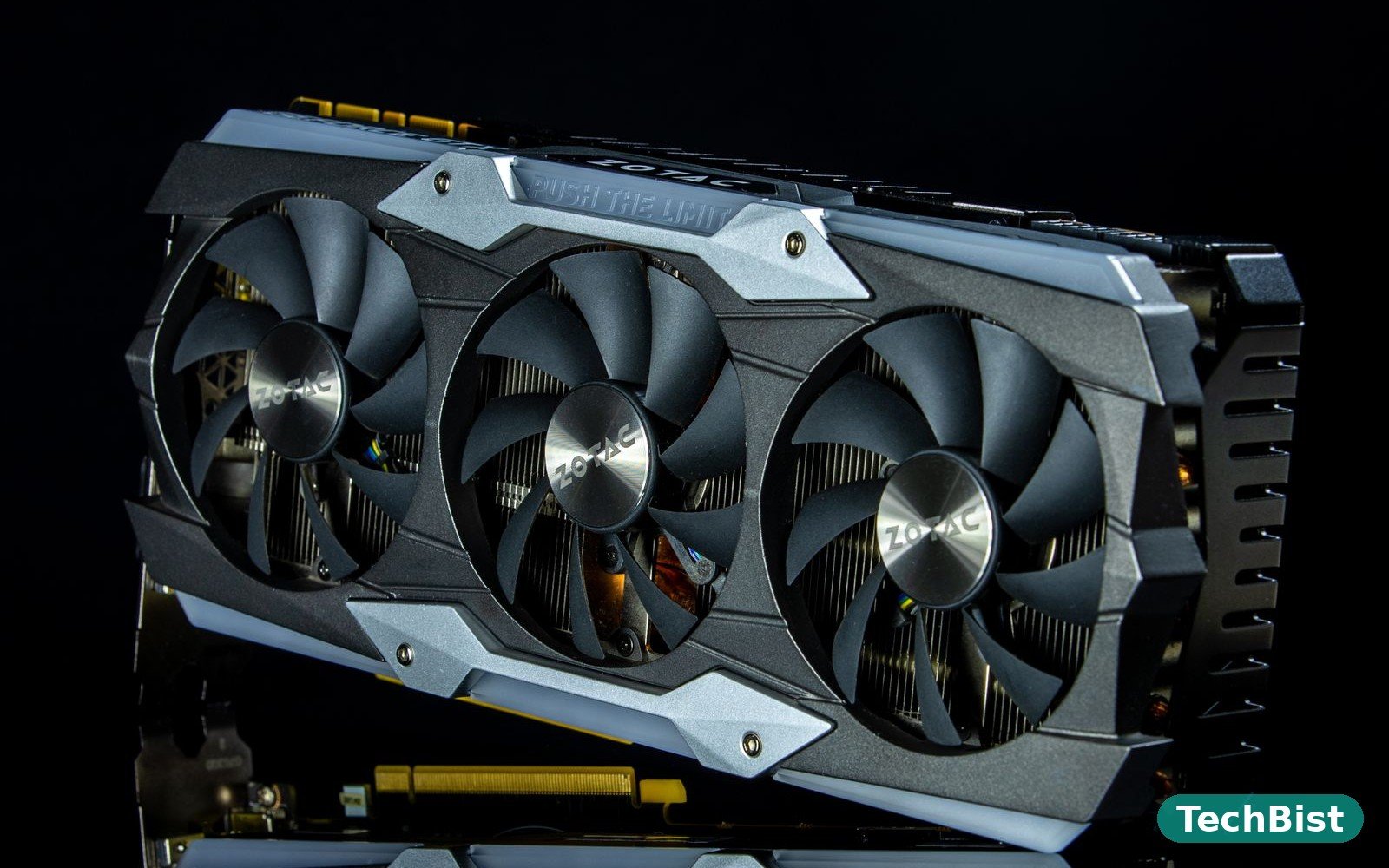
VRAM stands for video random access memory, and it is the memory built into your graphics card. It is separate from your computer’s main system RAM, and it is much faster at the kind of parallel number-crunching that AI models need, which is why models run on the graphics card rather than the main processor. When you load a model, its weights are copied into VRAM, and they stay there while the model works. The card’s VRAM capacity, commonly 8, 12, 16, or 24 gigabytes on consumer cards, is therefore the budget within which your model must live.
It is worth distinguishing VRAM from system RAM clearly, because confusing them causes real mistakes. System RAM is the memory your whole computer uses for programs, browser tabs, and files in progress. VRAM belongs to the graphics card alone and is used by the model. A machine with 64 gigabytes of system RAM but a graphics card with only 4 gigabytes of VRAM cannot run a model that needs 8 gigabytes of VRAM, no matter how much system RAM is free. Some systems can share memory between the two, and some tools can offload parts of a model to system RAM, but that is a fallback with a heavy speed cost, not a substitute for adequate VRAM.
Integrated graphics, the kind built into many laptop processors without a separate card, share system RAM instead of having dedicated VRAM. They can run small models, especially with careful settings, but they are substantially slower and more limited than dedicated cards, because they compete with the rest of the system for the same memory and lack the specialized hardware of a real graphics card. If you plan to run local models regularly, a dedicated card with at least 8 gigabytes of VRAM is the practical starting point, and 16 gigabytes opens up far more options.
The Simple VRAM Formula
The VRAM a model’s weights need can be estimated with one multiplication: parameters multiplied by bytes per parameter. A model’s parameter count, expressed in billions, is published for every major model. Bytes per parameter depends on the precision format, which is where quantization enters the picture.
At full 16-bit precision, each parameter takes two bytes. A seven-billion-parameter model therefore needs about fourteen gigabytes for its weights alone. At 8-bit precision, each parameter takes roughly one byte, so the same model needs about seven gigabytes. At 4-bit precision, each parameter takes roughly half a byte, so the same model needs about three and a half to four gigabytes. These are approximations, because real formats carry small overheads, but they are accurate enough for planning, and they explain why quantization transformed local AI: it roughly quarters the VRAM requirement of a model while keeping most of its quality.
A practical formula adds a margin for everything beyond the weights. Take the weight estimate, then add roughly twenty to thirty percent for working memory, or a few gigabytes on larger models, and you have a realistic total. For a seven-billion-parameter model at 4-bit, that means about four gigabytes of weights plus one to two gigabytes of working room, or roughly five to six gigabytes total. For the same model at 8-bit, about seven gigabytes of weights plus two gigabytes of working room, or roughly nine gigabytes total. These totals are the numbers to compare with your card’s capacity.
An example makes the method concrete. Suppose you have a card with 12 gigabytes of VRAM and you want to run a thirteen-billion-parameter model. At 4-bit, its weights need roughly seven gigabytes, plus working room of about two gigabytes, for a total near nine gigabytes, which fits comfortably. At 8-bit, its weights need roughly thirteen gigabytes, which already exceeds the card before working room, so it does not fit. The same model, the same card, and the quantization choice alone decides whether it runs. That is why download pages list multiple versions of each model, and why choosing the version matters as much as choosing the model.
For readers who want to estimate requirements for larger deployments, including multi-GPU setups, the documentation for the Accelerate library covers how models are distributed and what memory each part needs. For everyday local use, though, the simple formula above is enough, and it is worth memorizing: parameters times bytes per parameter, plus a margin.
VRAM Needs by Model Size
Different model sizes serve different purposes, and their VRAM needs scale predictably. The table below gives approximate total VRAM, including a working margin, for common model sizes at common quantization levels. Treat these as planning estimates, not exact specifications, because real usage varies with context length and software, but they are reliable enough to guide downloads.
| Model size | 4-bit (approx.) | 8-bit (approx.) | 16-bit (approx.) |
|---|---|---|---|
| 1–3 billion parameters | 2–3 GB | 3–5 GB | 5–8 GB |
| 7–8 billion parameters | 5–6 GB | 9–11 GB | 16–18 GB |
| 13–14 billion parameters | 9–11 GB | 16–18 GB | 28–32 GB |
| 30–32 billion parameters | 19–22 GB | 34–38 GB | 64–70 GB |
| 70 billion parameters | 42–48 GB | 75–85 GB | 140+ GB |
Small models, in the one-to-three-billion-parameter range, are the entry point for local AI. They run on modest hardware, including many laptops, and they handle summarization, simple questions, drafting, and brainstorming competently. Their limits show on complex reasoning, long documents, and precise technical work, where larger models pull ahead. For learning local AI, testing a pipeline, or everyday light use, a small model at 4-bit is an excellent, frustration-free start.
Mid-size models, around seven to eight billion parameters, are the sweet spot for most users. At 4-bit they fit on cards with 8 gigabytes of VRAM, and at 8-bit they fit on cards with 12 to 16 gigabytes, while offering a large quality jump over small models. They handle general chat, writing, coding assistance, and document work well, and they are the most widely tested and supported size in the local AI community. If you buy or choose hardware for local AI, sizing it for a mid-size model at 8-bit is a sensible target.
Large models, from thirteen billion parameters upward, demand serious hardware. A thirteen-billion-parameter model at 4-bit is feasible on a 16-gigabyte card, but larger models quickly require 24 gigabytes, multiple cards, or offloading tricks that cost speed. Seventy-billion-parameter models, the largest commonly run locally, need roughly 48 gigabytes even at 4-bit, which means professional cards or multi-card setups. Their quality is impressive, but for most personal uses, a mid-size model that runs smoothly beats a large model that crawls, and the table above helps you make that trade honestly.
Beyond Weights: KV Cache and Overhead
Weights are the largest VRAM consumer, but they are not the only one, and ignoring the rest leads to surprises. The second consumer is the KV cache, short for key-value cache, which is the model’s short-term memory of the conversation so far. As the model generates each new word, it stores information about the words that came before, so it does not have to recompute them. The longer the conversation or document, the larger this cache grows, and it grows with both context length and model size.
For typical chat, the KV cache is modest, often well under a gigabyte, and the weight estimate plus a small margin covers it. For long documents, however, it becomes significant: processing a very long document can add several gigabytes of KV cache on larger models, and that addition can push a model that fits at short contexts over the edge at long ones. If you work with long documents, budget extra VRAM for the cache, or reduce the context length you use, because context is the lever that controls this cost. Some tools let you quantize the KV cache itself, trading a little quality for substantial memory savings on long contexts.
Other overheads are smaller but real. The software running the model reserves some VRAM for its own operations, your display uses VRAM if the same card drives your monitor, and other GPU applications, such as a browser with hardware acceleration or a game left running, consume VRAM too. A card that reports 12 gigabytes total rarely offers all 12 to a model. Closing GPU-heavy applications before loading a model, and preferring a card with headroom above your estimate, avoids the frustrating case where a model fits on paper but fails in practice because a few hundred megabytes were already spoken for.
There is also a subtlety about how VRAM is reported. Some tools report the memory allocated, which can be higher than the memory actually used, because they reserve blocks in advance. If a tool shows usage near your card’s limit but the model runs fine, that is usually reservation rather than a real problem. Judge by behavior: if the model loads and responds at acceptable speed, the memory situation is fine regardless of what a monitor shows. If it fails to load or swaps constantly, the budget is genuinely exceeded.
Making a Model Fit: Practical Techniques
When a model you want is slightly too large for your card, several techniques can close the gap, each with a trade-off. The simplest is choosing a lower quantization level: moving from 8-bit to 4-bit roughly halves weight memory, at a modest quality cost that many users barely notice for general tasks. This single change rescues more projects than any other, and it should be your first step before more complex measures.
The second technique is reducing context length. If you do not need very long documents, capping the context window reduces KV cache growth substantially, freeing memory for the model itself. Most tools expose this setting, and setting it to cover your actual documents, rather than the model’s maximum, is free memory. Similarly, limiting the number of simultaneous conversations or batch size reduces peak memory, because each active sequence carries its own cache.
Offloading is the third technique: splitting the model so that part of it runs on the GPU and the rest on the CPU, using system RAM. This lets models larger than your VRAM run at all, but the CPU portion runs much slower, so overall speed drops sharply, sometimes to a crawl. Partial offloading, where most layers stay on the GPU and only a few move to the CPU, is a reasonable compromise when you are slightly over budget. Full offloading to the CPU is a last resort, suitable for occasional use but not for interactive work.
A fourth option, for users with more than one graphics card or access to a machine with one, is distributing the model across cards, so their VRAM pools together. This is well supported by advanced tooling but adds complexity in setup and configuration, and it is usually overkill for personal use. For most people, the practical ladder is: lower quantization first, then shorter context, then partial offloading, and only then consider hardware changes. Each step is cheaper than the one after it.
Choosing Hardware for Local AI
If you are buying or upgrading a graphics card with local AI in mind, VRAM should be your first criterion, ahead of raw speed. A card with more VRAM runs larger models and longer contexts, while a faster card with less VRAM simply cannot load those models at all. For a first local AI setup, 16 gigabytes of VRAM is the sweet spot: it runs mid-size models at 8-bit comfortably and larger models at 4-bit, covering the vast majority of personal uses. Cards with 12 gigabytes are workable, especially at 4-bit, while 8 gigabytes limits you to smaller models or aggressive quantization.
Speed still matters, but it matters second. Once a model fits, generation speed depends on the card’s processing power and memory bandwidth, and newer architectures are faster at the same VRAM level. If you are choosing between two cards with equal VRAM, prefer the newer architecture and higher memory bandwidth, because both improve generation speed noticeably. If you are choosing between more VRAM on an older card and less VRAM on a newer one, prefer VRAM, because a model that does not fit cannot benefit from speed at all.
System RAM matters as a supporting factor, not a substitute. Sixteen gigabytes of system RAM is a practical minimum for a machine that also runs local models, because the operating system, the model software, and any offloaded layers all need it, and 32 gigabytes gives comfortable headroom. Storage matters too, in a different way: model files are large, several gigabytes each, and a collection of them fills disks quickly. A solid-state drive is strongly recommended, because loading a multi-gigabyte model from a slow mechanical drive adds a frustrating wait to every session.
Finally, remember that hardware is not the only path to bigger models. Cloud GPU rental by the hour lets you run large models occasionally without buying hardware, and it is a sensible option for experiments or rare heavy tasks. For daily use, though, a local card with adequate VRAM remains the most convenient and private option, and the estimates in this guide help you buy exactly as much as you need, rather than guessing.
Common VRAM Mistakes to Avoid
The most common mistake is downloading a model without checking its size, then wondering why it fails to load. Always check the file size and quantization level before downloading, and compare the estimated total with your card’s free VRAM, not its advertised total. A few minutes of checking saves gigabytes of wasted downloading and the frustration of a model that cannot run.
The second mistake is forgetting that other programs use VRAM too. A browser with many tabs, a video call, or a game left running can consume gigabytes that your model needs. Close GPU-heavy applications before loading a large model, and if you consistently run short, consider a card with more headroom rather than fighting for every megabyte. The model is not the only tenant on the card.
The third mistake is assuming that more VRAM always means better answers. Once a model fits comfortably, extra VRAM does not improve its quality; it only allows larger models or longer contexts. Spending on VRAM beyond your actual model and context needs buys nothing, while spending on a better model within your budget buys real quality. Match the hardware to the models you actually run, not to the largest model you have heard of.
The fourth mistake is ignoring context length in VRAM planning. A setup that works beautifully for chat can fail on long documents, because KV cache grows with context. If your work involves long documents, test with your longest realistic document before committing to a model and quantization level, and budget for the cache accordingly. Planning for your longest case, not your average case, prevents surprises.
For general background on the hardware itself, the article on graphics processing units explains how GPUs work and why their memory architecture suits AI workloads. For related setup help, see our guide on Best Tools for Testing Local LLM Performance on TechBist, browse the full collection in the Generative AI & Local LLMs category, and visit our blog for the latest explainers.
Frequently Asked Questions
How much VRAM do I need to run a local LLM?
It depends on model size and quantization. As a rule of thumb, a 7-billion-parameter model needs about 5–6 GB at 4-bit and 9–11 GB at 8-bit, including working room. A card with 16 GB covers most personal uses, while 8 GB limits you to smaller models or 4-bit quantization.
What happens if a model needs more VRAM than my card has?
It will fail to load, or it will run extremely slowly by offloading parts to system RAM. VRAM is a hard ceiling: unlike system RAM, it cannot be expanded by software. Choose a smaller model, a lower quantization level, or a shorter context to fit within your card’s capacity.
Is system RAM a substitute for VRAM?
No. System RAM is separate and much slower for AI workloads, and a model that needs 8 GB of VRAM cannot run on system RAM alone at usable speed. Offloading to system RAM is a fallback for slightly oversized models, not a replacement for adequate VRAM.
Does quantization reduce quality a lot?
At 8-bit, quality loss is negligible for most tasks. At 4-bit, general chat and writing remain strong, while precision-heavy tasks like complex math and exact code suffer somewhat more. For most personal uses, 4-bit is an excellent trade that roughly quarters memory needs.
How does context length affect VRAM?
Longer context increases the KV cache, the model’s short-term memory of the conversation, which grows with both context length and model size. For long documents, budget extra VRAM beyond the weights, or reduce the context window to what your documents actually require.
1 thought on “GPU VRAM Requirements for Local LLMs”